Activity Bank
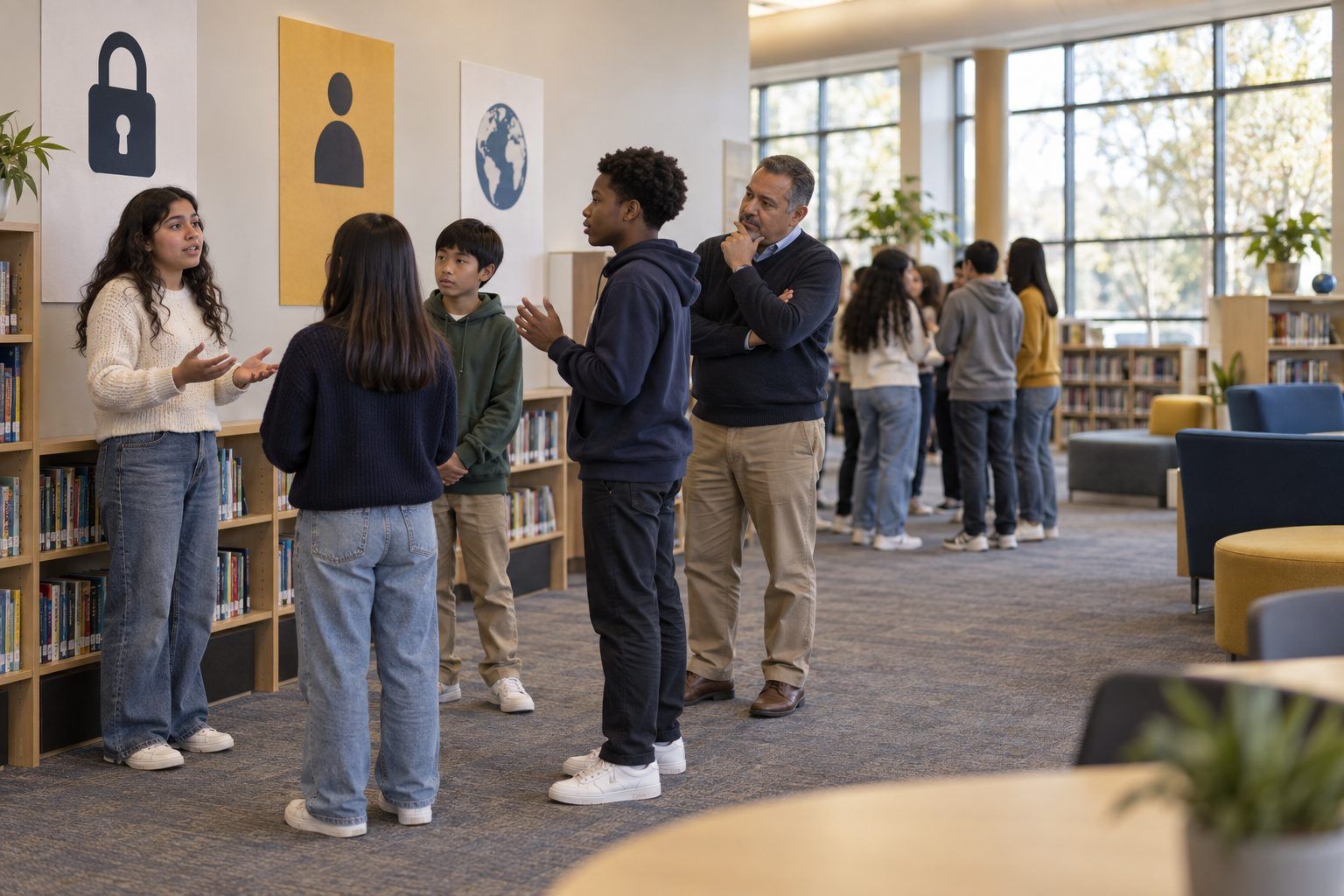
Middle schoolers stand under different signs and debate which personal information should stay private.

All activities Student learning

My Digital Safety Plan

Students work through real-world sharing dilemmas, audit account security and privacy habits, and write a personal safety plan they explain to a family member.

Print handouts

Overview

Staying safe online isn't one rule; it's a set of habits: strong, unique passphrases, two-step login, careful privacy settings, thinking before posting, and knowing what not to type into an AI chatbot. Students discuss eight "What would you do?" scenarios, audit their own habits with a checklist (no one has to reveal any account details), and write a personal Digital Safety Plan. Students who don't have accounts yet plan for a family device, a school account, or their first account.

Objectives

  • Students will explain the difference between private, personal, and public information and give an example of each.
  • Students will evaluate their own account security and privacy habits using a checklist and identify at least two habits to change.
  • Students will write a Digital Safety Plan that includes a passphrase strategy, two-step login, privacy settings to check on any new app, and rules for sharing information with AI tools.

Materials

On paper

  • Handout A: What Would You Do? Scenario Cards (1 set per pair, cut apart)
  • Handout B: Safety Habits Audit (1 per student)
  • Handout C: My Digital Safety Plan (1 per student)
  • Three signs for a quick four-corners warm-up: Private · Personal · Public

On screen

  • Teacher projector to demonstrate privacy settings on a school account or a demo account
  • Optional: student devices to explore privacy and security settings on their school account only, with the teacher
  • Optional (at home): a family device and a trusted adult to complete the plan's settings check together

Before you start

  1. Print and cut Handout A. Print Handouts B and C.
  2. Post the Private, Personal, and Public signs in three parts of the room.
  3. If you'll demo settings, open your school account's (or a demo account's) security and privacy pages ahead of time. Never display a real student's account.
  4. Remind students up front: they will never write a real password, username, or address on any handout.

Step by step

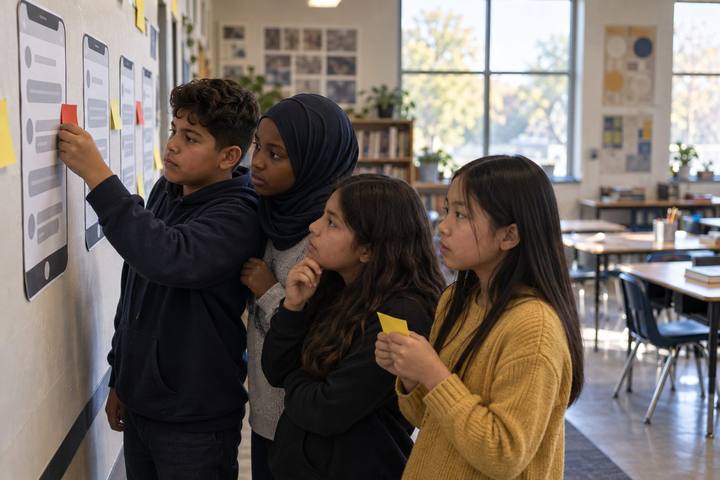
  1. 10–6 min

    Hook

    Private, personal, or public?

    Read items aloud and have students walk to a sign: your favorite color, your home address, your password, your school's name, your birthday, a photo of your house, your first pet's name, the town you live in. After each, ask one student to defend their spot. Define together: Private = never share online (passwords, address, codes). Personal = share only with people you know and trust. Public = fine to share, but still a choice.

    Facilitator note"First pet's name" and "birthday" surprise students: they're common answers to security questions, so treat them as more private than they feel.

  2. 26–18 min

    Explore

    What would you do?

    Pairs draw scenario cards from Handout A, discuss for about 90 seconds each, and agree on an action. Then they flip to the back (or you read the key) and compare. Each pair marks one card where they disagreed at first or changed their minds.

    Facilitator noteCard 7 (the AI chatbot) is often the most eye-opening. Many students assume chats with AI tools are private. Tell them to treat anything they type as something that could be stored or seen by others.

  3. 318–25 min

    Model

    Settings tour

    On the projector, walk through the security and privacy pages of your school or demo account. Show where to turn on two-step login, how to see which devices are signed in, where location and profile visibility live, and how to review app permissions. Then model a passphrase strategy: several unrelated words strung together, different for every account, stored in a password manager or a written list kept safe at home with an adult. Say: "Every app puts these in a different place. The skill isn't memorizing one app; it's knowing what to look for in any new one."

    Facilitator noteNever type a real password on the projector. Use an obviously fake example passphrase such as "cactus-lantern-orbit-pickle" and say you'd never use a published one.

  4. 425–33 min

    Practice

    Safety Habits Audit

    Students complete Handout B privately, marking Yes, Partly, No, or Not sure. They write no account names or passwords. Students without accounts answer for a family device, a game console, or their school account. Then they circle the two habits that would make the biggest difference for them.

    Facilitator noteKeep this private. Don't collect Handout B; it's for the student. Collect Handout C instead.

  5. 533–45 min

    Create

    Write the plan

    Students write their Digital Safety Plan on Handout C: their passphrase strategy (without the actual passphrase), two-step login, three settings to check on any new app, a sharing rule, an AI-chatbot rule, and who they'd tell if something went wrong. Pairs trade plans and give one "I'd add…" suggestion. Students revise one line based on the feedback.

    Facilitator noteLook for plans that are specific and doable ("I'll turn off location on my camera app") instead of vague ("I'll be careful").

  6. 645–50 min

    Reflect

    Explain it to someone

    Ask: "Which part of your plan would be hardest to keep up, and why?" Take a few answers. Then assign the home step: students explain their plan to a family member and, with that adult, check the privacy settings on one app or device together. They bring back a one-sentence note on what they changed.

    Facilitator noteThe explanation to a family member is the evidence of ownership. Students who can explain a habit are more likely to keep it.

Paper or screen

Unplugged

Run the four corners, scenario cards, audit, and plan on paper. In place of the settings tour, draw a generic settings menu on the board (Security, Privacy, Location, Apps, Devices) and talk through what students would look for under each heading.

Digital

The teacher demonstrates settings on a school or demo account. Grades 6–8 students may explore the security and privacy pages of their own school account with the teacher; students 13 and older can check personal accounts at home with a family member. Students can also keep the plan as a document in their school account or portfolio and update it when they join a new app. No AI accounts are needed.

Does it need a screen? The settings tour turns abstract advice into a concrete skill: finding two-step login and privacy settings on an unfamiliar platform. That's what students will need every time they adopt a new tool. The plan itself works just as well on paper.

Evidence of learning

What you should be able to see or collect if it worked.

  • Students correctly sort examples as private, personal, or public and can explain the security-question risk of "harmless" facts.
  • Handout C includes specific, doable actions (a passphrase strategy, two-step login, named settings to check) rather than general promises.
  • Students revise at least one line of their plan after peer feedback and report one setting they changed at home.

Adaptations

Grades 3–5
Use Cards 1, 3, 5, and 7, focus on the four corners and "tell a trusted adult," and replace the audit with a family-device checklist completed at home.
Grades 9–12
Add cards on location-sharing with friends, college application profiles, and data brokers, and have students compare the privacy settings of two apps they use.
Students with limited home access
Let students complete the home step with a school counselor, librarian, or older sibling, or plan for a future account. No student should be penalized for not having devices or accounts.

Standards connections

Students audit their own security habits and write a plan with passphrases, two-step login, and privacy settings, the privacy, safety, and security substrand.

TEKS
privacy, safety, and security (c)(10)TEKS sections: Technology Applications §126.17–§126.19, high school Technology Applications courses (19 TAC Chapter 126)

See how all activities align

Reflect

  • Do I stay safe and make good choices when I use the internet? Which habit in my plan will protect me most?
  • What information about me would I not want a stranger, or an AI tool, to have? Why?
  • When I try a new app, what three things will I check first?

What comes next

Students update their Digital Safety Plan the next time they join a new app or platform, including new school tools. Revisit the plans at the start of the next grading period and ask which habit students actually kept.

Pairs well with